Exercise 16. Interface and Application Programming
Labwork: Device Interface
Write an application that interfaces with an input and output devices that you made, comparing as many tool options as possible.
Take Away
- I learned arduino interface came from processing interface - go open-source
- Once you install the appropriate files and learn the worflow, Processing is easy to use
- I will be using Processing with my high school students
Homework
I wanted to program a Satshakit Arduino to rotate a servo using the processing language. I began by researching more about Processing. I felt Processing would be appropriate for my high school students. I decided to begin by learning about Processing using the following sources:
- The Sparkfun Guide to Processing
- Processing Powerpoint created by Dr. Fagan and Creatrex
- Arduino Playground Processing
Preparation
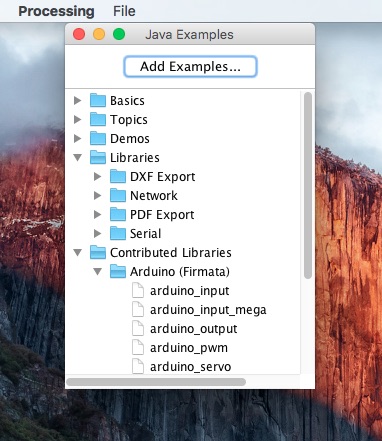
Next I downloaded and installed Processing. I did not need to download the Arduino Firmata library because Arduino version 1.6.8 comes with the Firmata library.
Process
I setup a simple momentary switch with 10k pull-down resistor. I connected it to a Redboard - Sparkfun Arduino. I ran the digital read example found in Arduino software. The program ran once I connected a ground. I now was ready to try out the Processing software since my hardware was ready.
I uploaded the Standard Firmata program listed in the examples section of Arduino. Next I needed to let the processing program know the serial port. I ran the following code in Processing.
import processing.serial.*;
import cc.arduino.*;
println(Arduino.list());
At the bottom of the program window I saw the list of serial ports that I normally see in Arduino so I selected the last one and copy it. I saved this bit of code as serial check.
I then opened the arudino_input file found in processing. I read and followed the comments section and copied the serial port strings into two lines (44 and 49) of the Arduino-Input processing files.
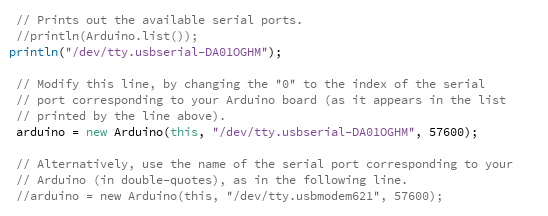
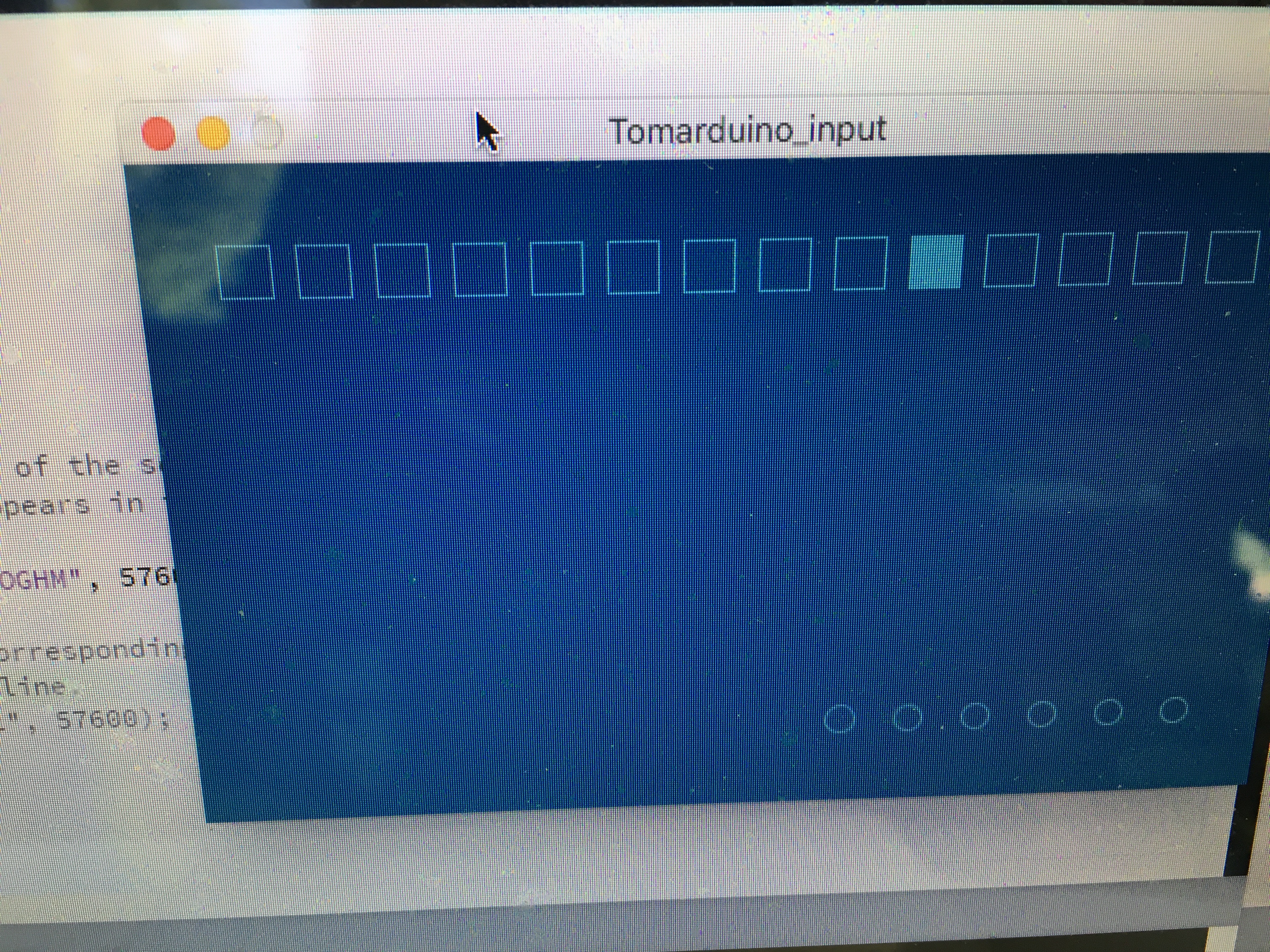
I also changed the input pin to 5 which is the pin I plan to use in the Fab Arduino. I renamed and saved arduino_input file to tomarduino_input file. It worked. I touch the switch and the interface changed.
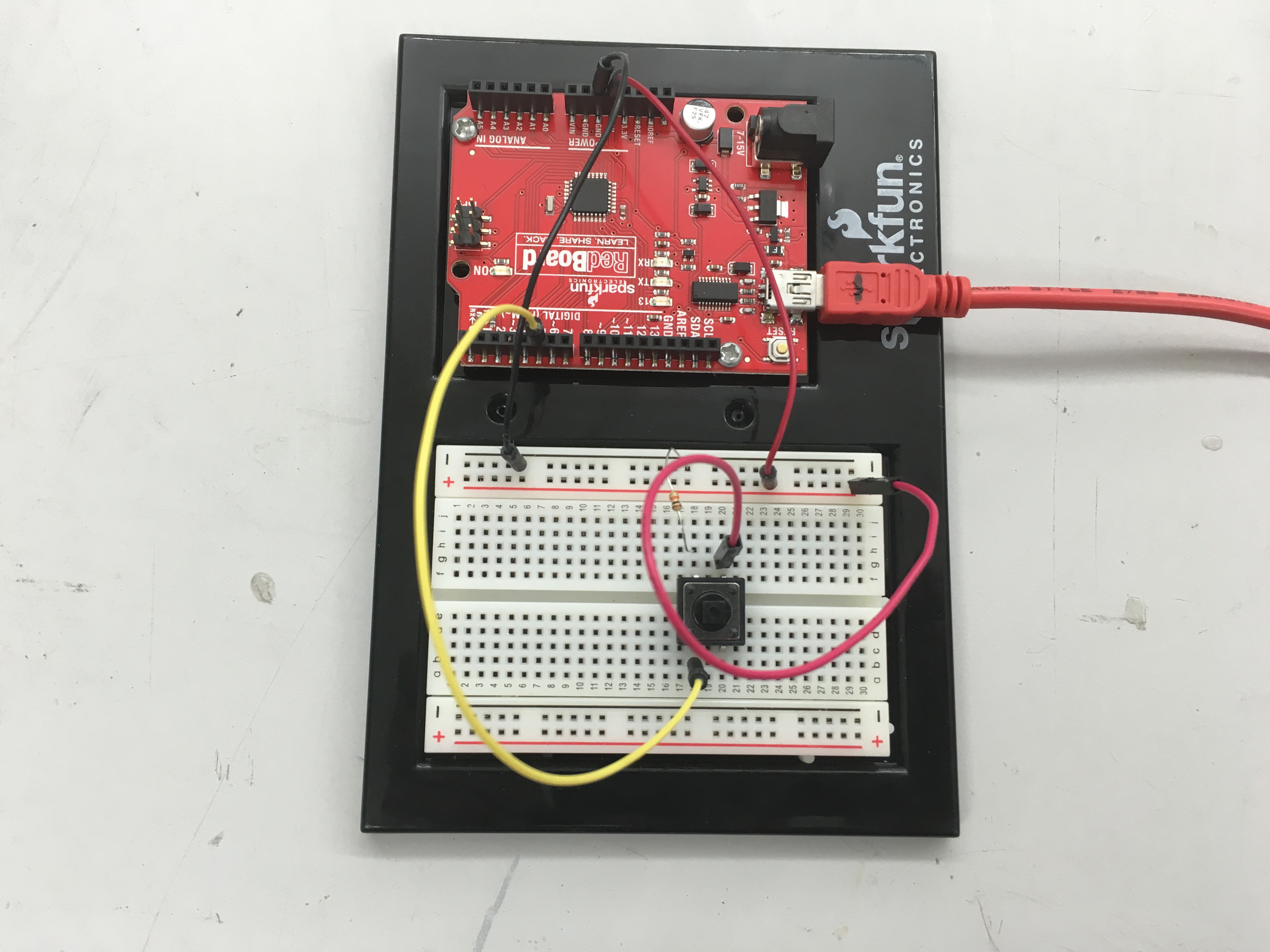
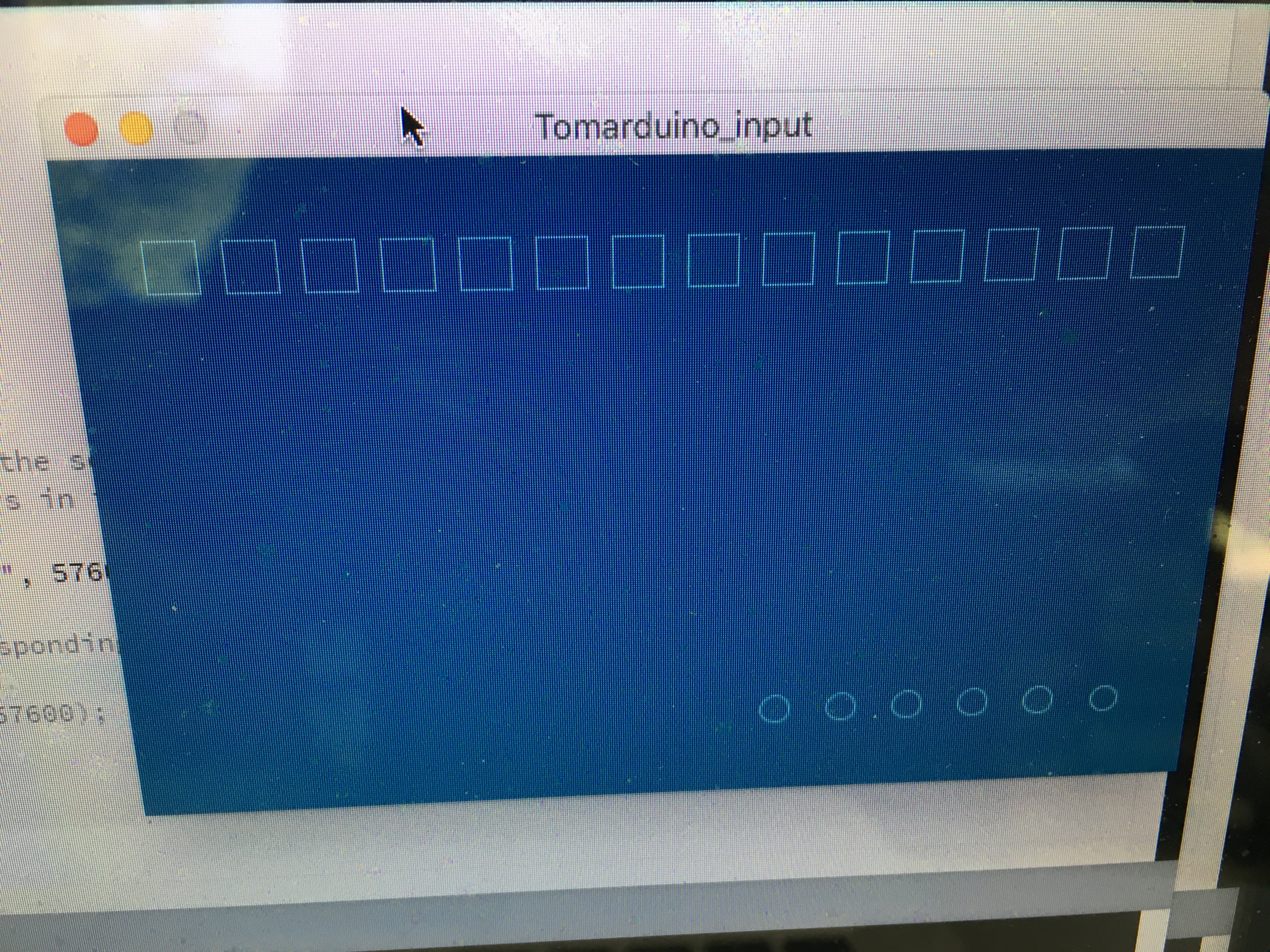
Now I removed the resitors and the momentary button from the breadboard and then hookup a servo. I reran the code to check the serial port. It was same value as when I ran it earlier. Next, I open the arduino_servo. I updated line 50 where I updated the serial port string arduino = new Arduino(this, "/dev/tty.usbserial-DA01OIV9", 57600); Next I change the input pin from seven to five to reflect my Arduino changes. I ran the program and it worked as expected.
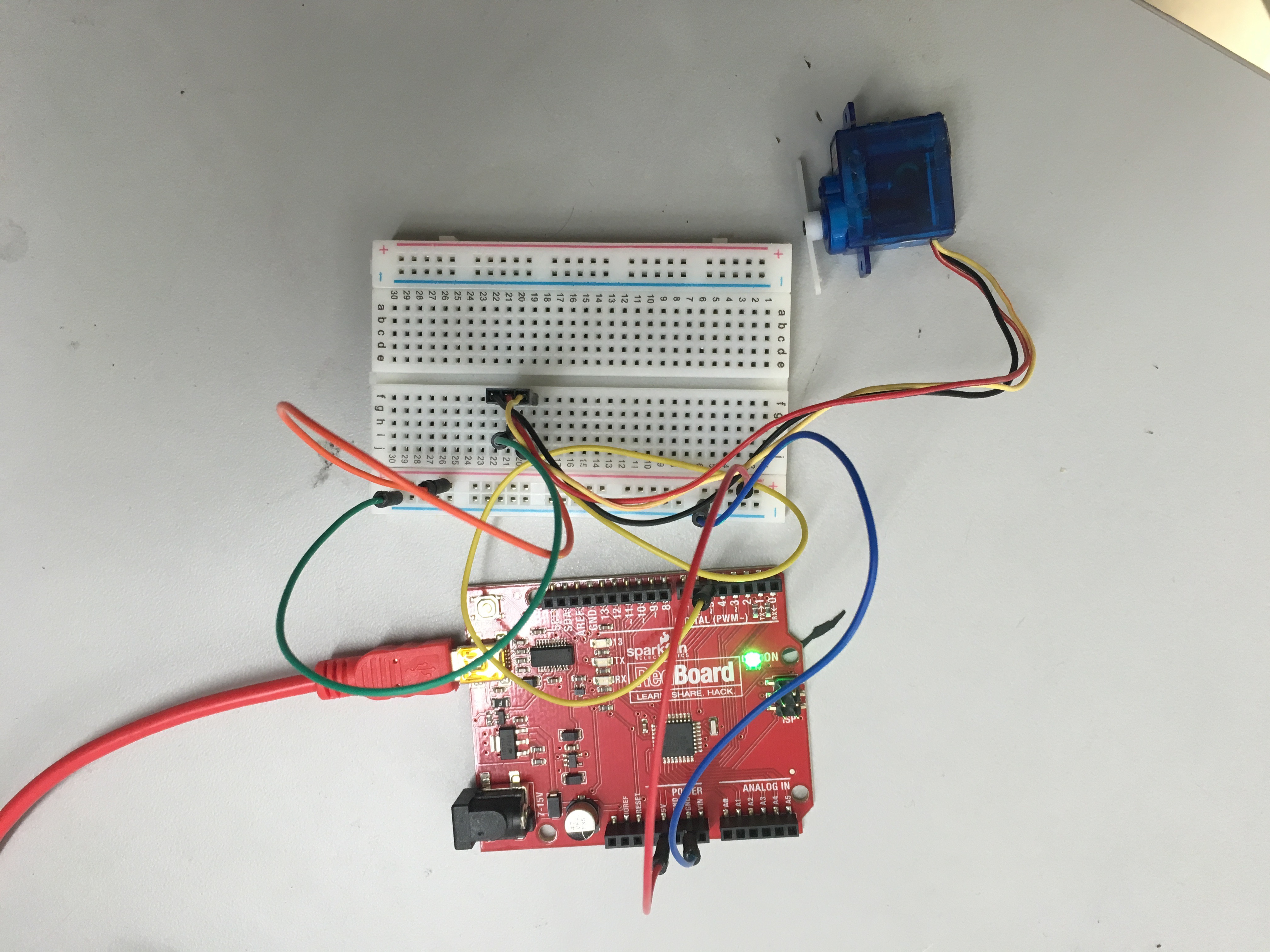
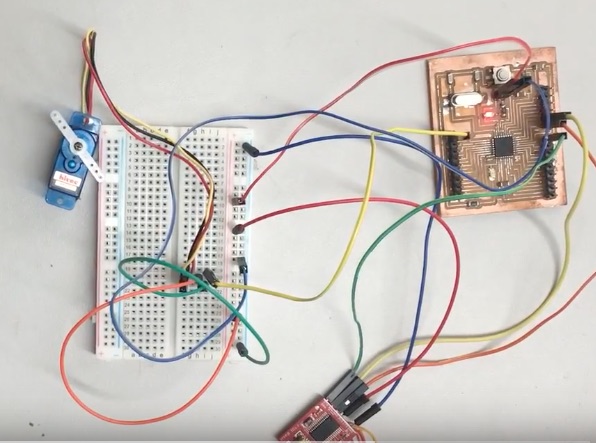
I decided to improve the program by creating a circle that changes size as I move the mouse and move the servo. I ran it and it looked cool. Next, I decided to add a single bar graph. Finally, I decided to make the circles and bar graphs purple because I could.
Finally, I switched out the Sparkfun Arduino and replaced it with our Fab Aacadmey Satshas Arduino. I could not upload the serial check program. I checked and then rechecked the connections. No luck. Finally, I replaced the FTDI. I ran the serial check program and it worked!
Videos
- Demonstration of using Process and my custom Fab Arduino to control a servo with a finger swipe
- Demonstration of using Process and my custom Fab Arduino to control a servo with a finger swipe showing processing screen
- Demonstration of using Process to portray a digital input
- Demonstration of using Process to control a servo with a finger swipe
Files
- Zipped Files File
- Port Check Processing File
- Digital Input (Button) Processing File
- Servo Fab Arduino Processing File